This guide details how to install the Edurun tool in Moodle using the LTI 1.3 standard, including the dynamic registration method for automated configuration.
Prerequisites
Secure URL: The tool must be deployed on a certified HTTPS address.
Administrator Access: Administrator permissions are required on the Moodle site to manage external tools.
Dynamic Registration URL: You must have the URL provided by your developer at hand (e.g., https://application.com/register).
Step 1: Access Tool Management
- Log in as an administrator to Moodle.
- Go to Site administration > Plugins > External tool > Manage tools.
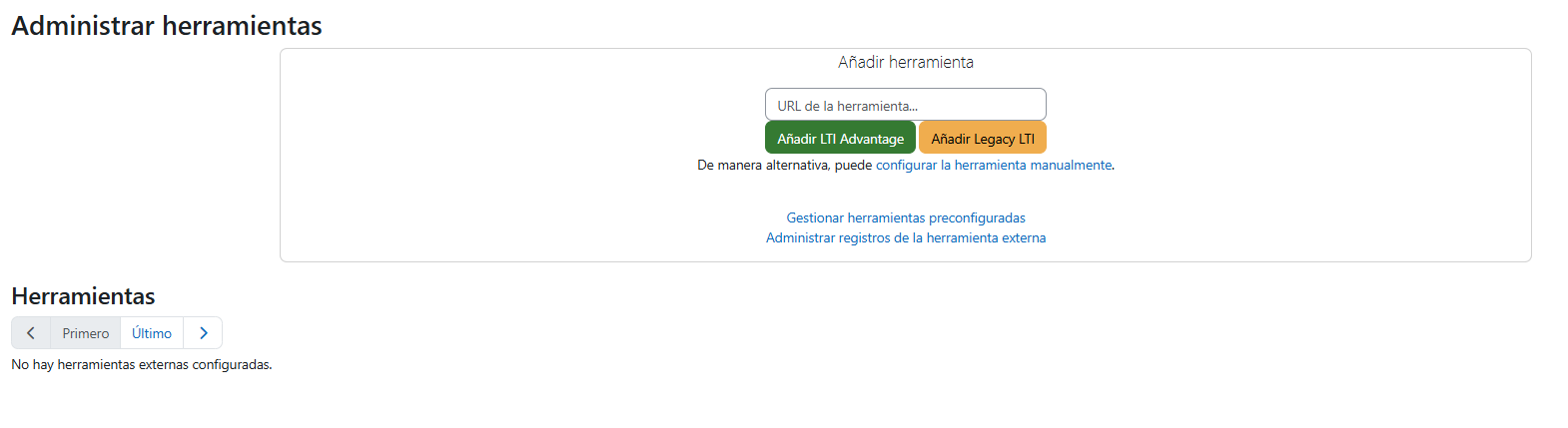
Step 2: Dynamic Registration (Automatic Method)
This is the fastest method, as Moodle and Edurun will automatically exchange security keys and endpoints.
-
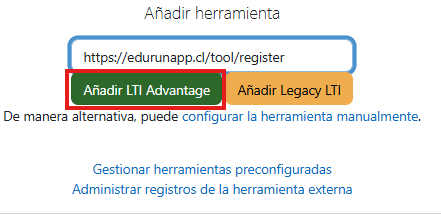
In the Tool URL field, paste the registration link provided by the developer.
Example:
https://application.com/register -
Click the Add LTI Advantage button.
-
A pop-up window from the Edurun tool will open confirming the connection. Click Continue/Confirm.
-
Moodle will display a message indicating that the tool has been configured correctly.
Step 3: Activation and Final Configuration
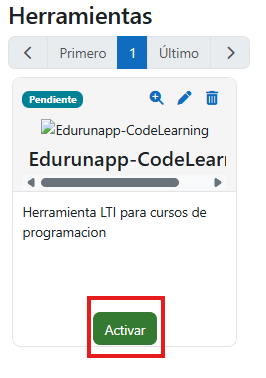
Once added, the tool will appear in the list of managed tools.
Enable: Verify that the tool status is marked as “Active”.
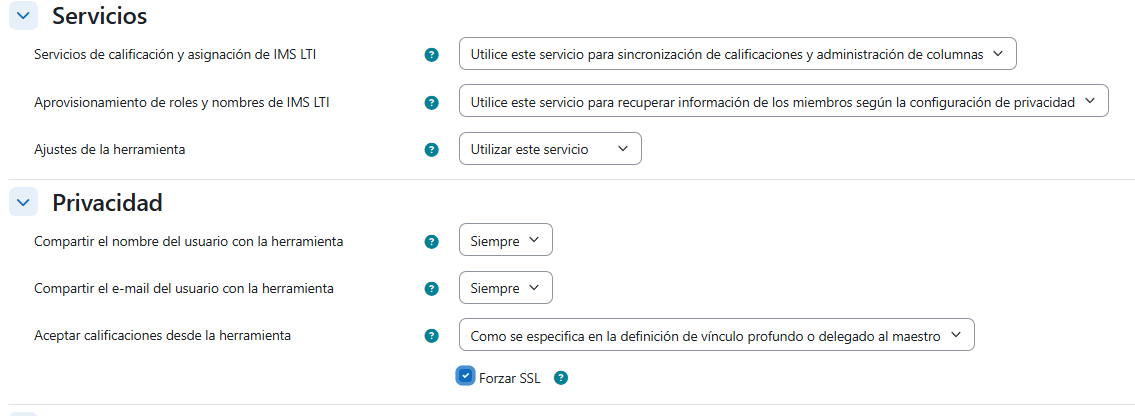
Privacy Settings: Click the pencil icon (Configuration) of the newly created tool and ensure the following options are as shown in the screenshot:
- IMS LTI grading and assignment services
- IMS LTI role and name provisioning
- Tool settings
- Share username with the tool
- Accept grades from the tool
- Force SSL
Note for Developers: If dynamic registration does not automatically register the platform on your server, contact the developer or email us at contacto@edurunapp.cl
Step 4: Enable the Tool in the Course
Before you can add Edurun activities, you must first activate the tool in the course.
-
Go to the course where you want to use Edurun.
-
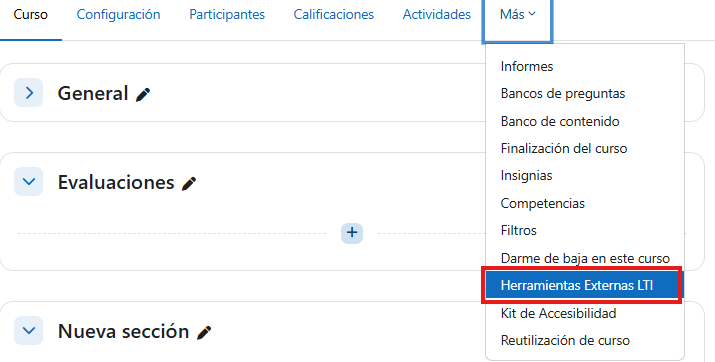
Go to More > External LTI Tools.
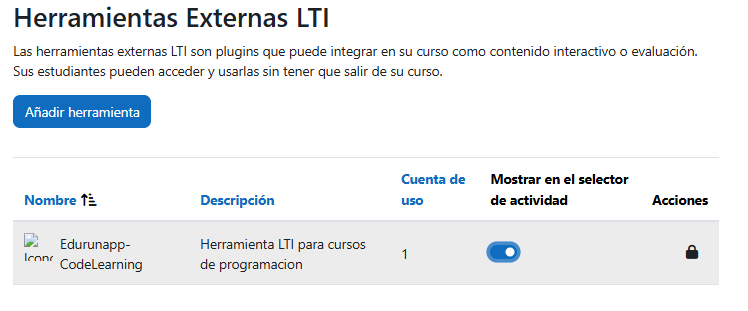
- Enable the Edurun tool.
Step 5: Add an Edurun Activity
-
Turn on Edit mode in the course.
-
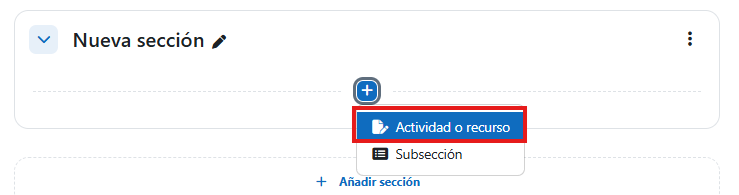
Click Add an activity or resource.
-
Select External tool.
-
In Preconfigured tool, select Edurun from the dropdown menu.
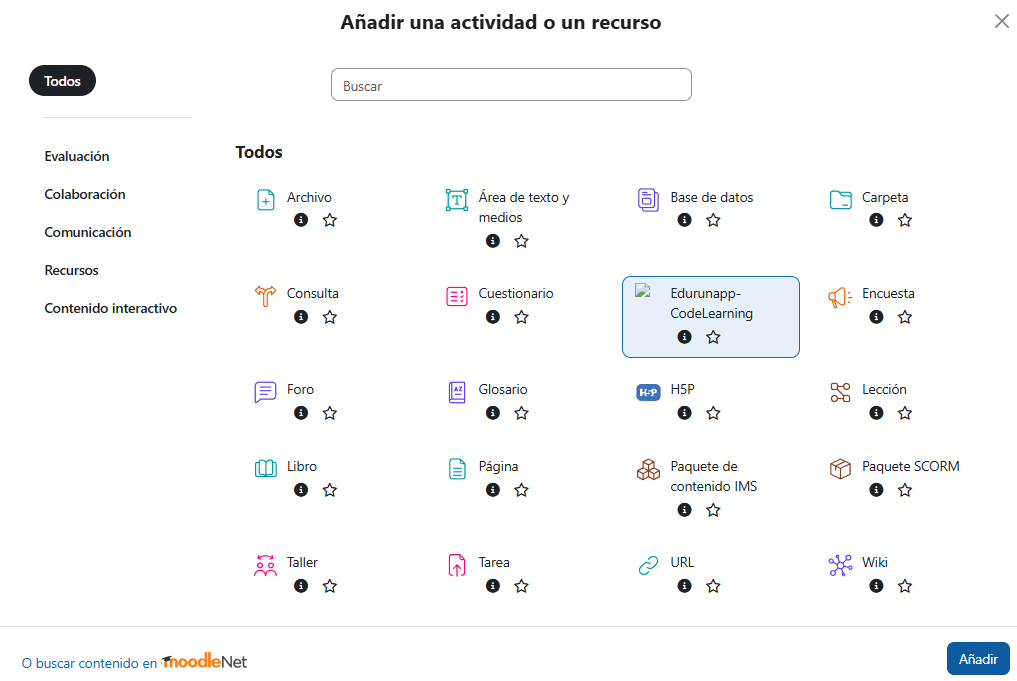
- Click Save and display.
Note for Administrators: If after completing all the steps you cannot access the tool due to a cookie error, you have two options to resolve it:
Option 1 (Recommended): In the general settings of the external tool, change the mode from “Embedded” to “Open in a new tab”, save the changes and reload the site.
Option 2: Go to your browser’s cookie settings and add your Moodle instance domain to the allowed third-party cookie sites (example:
[*.]milaulas.com), save the changes and reload the site.Browser-specific paths:
- Google Chrome:
chrome://settings/cookies- Microsoft Edge:
edge://settings/privacy/cookies- Mozilla Firefox:
about:preferences#privacy(in the “Cookies and Site Data” section)- Opera:
opera://settings/cookies
Note: Dynamic Registration eliminates the need to manually copy the Client ID and Keys between platforms, reducing human configuration errors.